

- Product
Kindling
Product Overview
Sophisticated security with unmatched simplicityCloud SIEM
Pre-configured detections across your environmentHoneypots
Deception technology to detect lateral movementEndpoint Visibility
Real-time monitoring with added detection & responseSecurity Reports
Data visualizations, compliance reports, and executive summariesAutomated Response
Detect, prioritize, and neutralize threats around the clockIntegrations
Cloud, on-prem, and open API connectionsXDR Platform
A complete view to identify risk, and things operational
- Pricing
- Why Blumira
Why Blumira
The Security Operations platform IT teams loveWatch A Demo
See Blumira in action and how it builds operational resilienceUse Cases
A unified security solution for every challengePricing
Unlimited data and predictable pricing structureCompany
Our human-centered approach to cybersecurityCompare Blumira
Find out how Blumira stacks up to similar security toolsIntegrations
Cloud, on-prem, and open API connectionsCustomer Stories
Learn how others like you found success with Blumira
- Solutions
- Partners
- Resources
The Importance of Monitoring File Changes
Monitoring file changes are important especially for files or folders that are not anticipated to have changes outside of certain parameters. Detecting file changes can assist in identifying if malicious actors have been able to modify or delete files of interest. For example, file changes can inform you if a malicious actor has copied malware to a file directory or if an inside threat actor has deleted files that they are not supposed to. The below process will work with your modern Windows operating system regardless of if it is a server or workstation.
How to enable the necessary group policies
Before we begin, we need to ensure that the necessary group policies are configured so that we can conduct this level of auditing. To do this will need to open the Group Policy Editor and follow the below two steps.
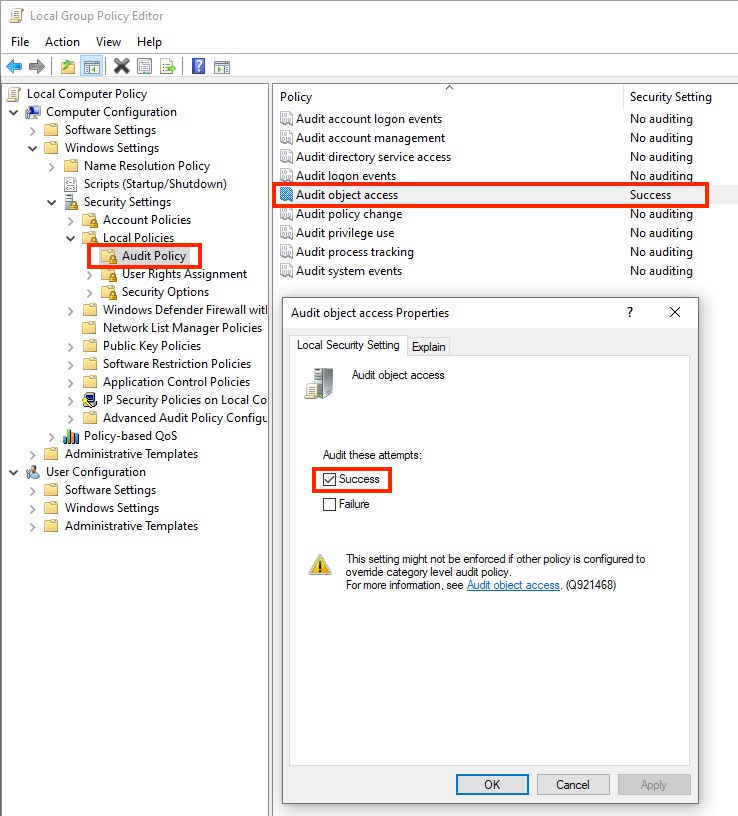
1. Navigate to Computer Configuration > Windows Settings > Security Settings > Local Policies > Audit Policy. When in Audit Policy select “Audit object access” properties and check the Success checkbox and then apply.
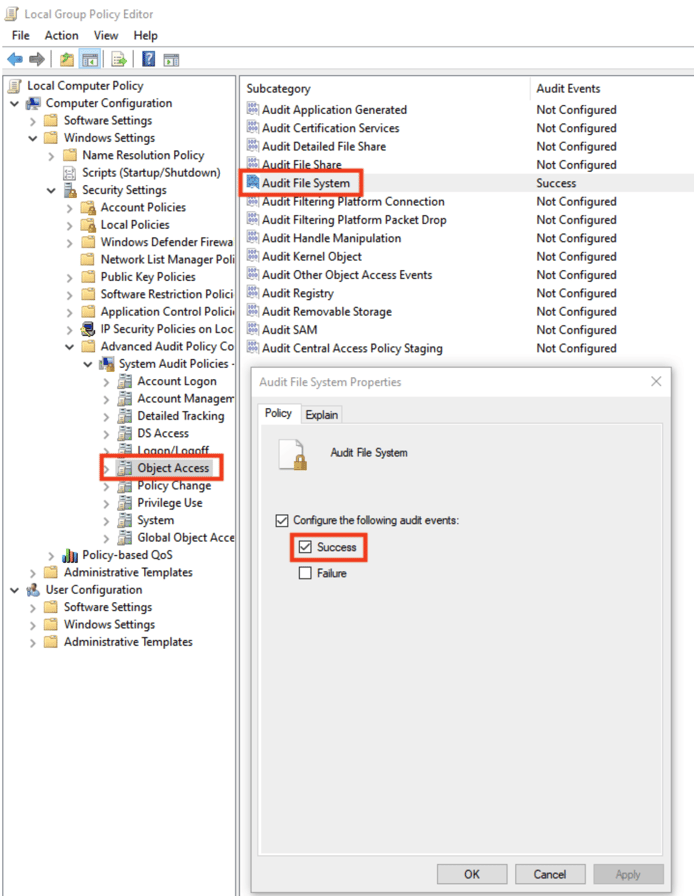
2. Navigate to Computer Configuration > Windows Settings > Security Settings > Advanced Audit Policy Configuration > System Audit Policies > Object Access. When in Object Access open the properties for both “Audit File System” and “Audit Handle Manipulation”. Check the Success checkbox for each and then apply.
How To Detect File Changes
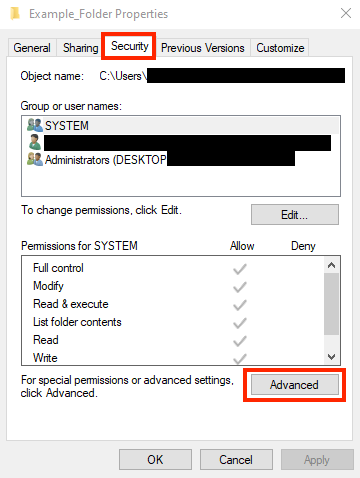
1. On the folder or file that you want to configure auditing for, right click and select Properties and then navigate to the Security tab. Now select Advanced.
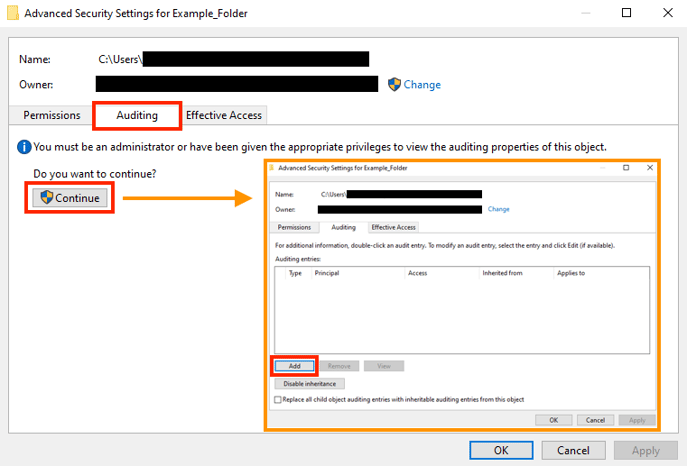
2. Within Advanced navigate to the Auditing tab > Continue > Add.
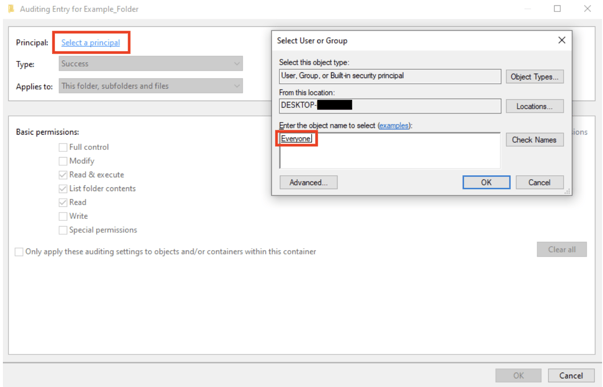
3. Within the Auditing Entry click “Select a principal” and enter “Everyone” as the object name, in order to track changes if done by any user, then click OK.
- If you only want to audit changes for certain users or groups you can list them under “Enter the object name to select” instead of the “Everyone” object.
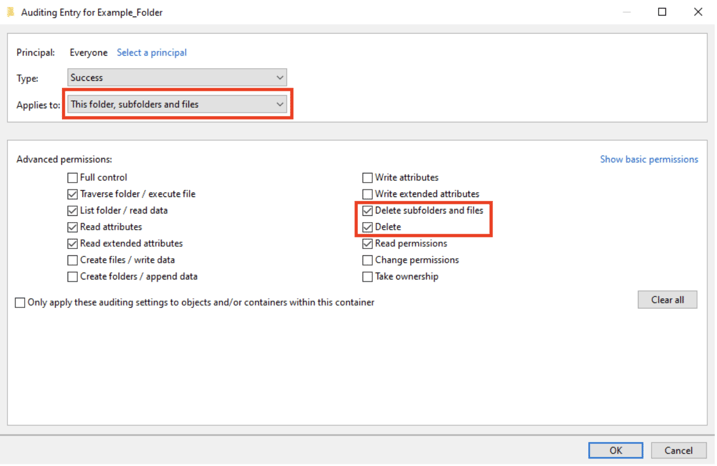
4. In order to track when a file or folder is deleted check the checkboxes for “Delete subfolders and files” and “Delete”. If you would like to track other changes, for instance, you can add “Write” permissions to track when a write has occurred. There are also other permissions that can be configured to audit their corresponding activity. After reviewing the below notes click OK to apply.
Here are a few things to take note of during this step:
- If you would only like to know when a file or folder has been deleted you can uncheck all boxes except the two delete checkboxes.
- The checkbox “Only apply these auditing settings to object and/or containers within this container” if left unchecked this will overwrite the permissions of the files and folders contained in the folder with all permissions of the files and folders within it so if left unchecked the audit settings you configure for this folder will propagate to the sub files and folders.
- The drop down for “Applies to” is only applicable when auditing folders. If you are creating this audit entry for a single file you can ignore this dropdown in the below screenshot.
- If “This folder, subfolder, and files” is selected, this will inform you when a file with the folder is deleted even if the file that was deleted was a new file that was created after this configuration process took place. This also applies to subdirectories that are present or that will be created.
- The security log is limited in size so you will want to be mindful of what files and folders are being audited as well as the number of them. If the security event log runs out of space, older logs will be overwritten. Although the maximum size of the security event log can be expanded.
5. Now that the Auditing Entry has been configured it will appear under Auditing Entries. You can click Apply and OK.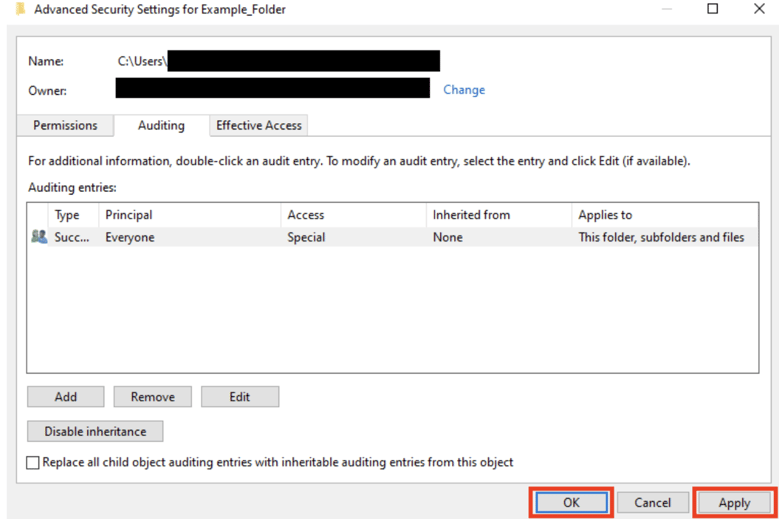
6. Now you can delete a test file or folder. This action will generate a 4663 event.
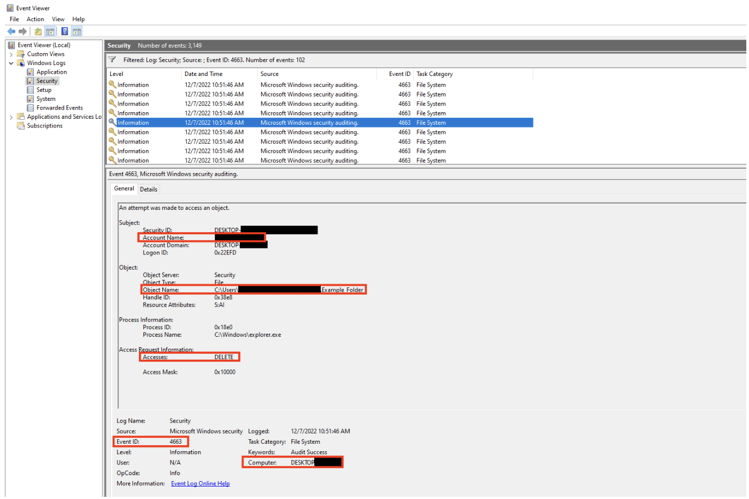
Here is some useful information that you will want to review in the above example 4663 event:
- Account Name: This will provide you the user that took the action.
- Object Name: Will be the filename or folder name of the object that the action was taken on. This will also provide you with the path to that file or folder.
- Access: This will show you the action that took place.
- Event ID: If you are monitoring for a file or folder being deleted, a 4663 event will be generated for each single file and folder that was deleted.
- As an example there will be multiple 4663 events, one for each txt file, if there was a folder that was deleted which contained multiple txt files.
- The subdirectories and files within the folder that was deleted will only create a 4663 event if the dropdown for “This folder, subfolder, and files” was previously configured which we discussed in step 4.
- Computer: Will show you the device name that this action took place on.
Detecting File Changes With Blumira
Once the above process has been completed, you can use Blumira to view these events by using the Report Builder feature within the Blumira app to create a report that provides the logs that were created for this activity by searching for 4663 events and selecting the columns that you want to view. Blumira also can facilitate the creation of a custom detection which can generate notifications within the Blumira app to alert you when these file system changes take place.
More from the blog
View All Posts
Blog
28 min read
| June 5, 2026
Microsoft Teams Helpdesk Impersonation Attack Explained
Read More
Blog
15 min read
| January 9, 2026
Microsoft 365 Security Best Practices: A Prioritized 2026 Guide
Read More
Security How-To
1 min read
| November 14, 2025
Proven Ways to Take Control of Windows & Entra Security
Read More