

- Product
Kindling
Product Overview
Sophisticated security with unmatched simplicityCloud SIEM
Pre-configured detections across your environmentHoneypots
Deception technology to detect lateral movementEndpoint Visibility
Real-time monitoring with added detection & responseSecurity Reports
Data visualizations, compliance reports, and executive summariesAutomated Response
Detect, prioritize, and neutralize threats around the clockIntegrations
Cloud, on-prem, and open API connectionsXDR Platform
A complete view to identify risk, and things operational
- Pricing
- Why Blumira
Why Blumira
The Security Operations platform IT teams loveWatch A Demo
See Blumira in action and how it builds operational resilienceUse Cases
A unified security solution for every challengePricing
Unlimited data and predictable pricing structureCompany
Our human-centered approach to cybersecurityCompare Blumira
Find out how Blumira stacks up to similar security toolsIntegrations
Cloud, on-prem, and open API connectionsCustomer Stories
Learn how others like you found success with Blumira
- Solutions
- Partners
- Resources
If your team runs its business out of Autotask, you already know the drill: a Blumira alerts you of a finding, and your technician has to manually create a ticket, fill in the details, and then remember to keep both systems up to date. Status changes in Autotask? Better update Blumira too. Finding resolved in Blumira? Time to close the ticket. Somewhere in between, things fall through the cracks.
Until now, Blumira couldn't meet you there. Every finding was an email, every status change was a duplicate update in two places. That changes today.
Your Blumira Security Findings. Your Autotask Ticketing Workflow. Finally in the Same Place.
Blumira now offers a native, bidirectional integration with Autotask PSA, bringing Blumira findings directly into your Autotask ticketing workflow with two-way sync, so your team never has to update two systems for one finding again. New findings create tickets in Autotask automatically, with the full investigation context attached. When your team updates a ticket, Blumira knows. When a finding is resolved in Blumira, the ticket closes.
For MSPs who've been stitching things together with email-to-ticket forwarding or Zapier workflows, you now have a native path that doesn't require third-party automation or manual upkeep.
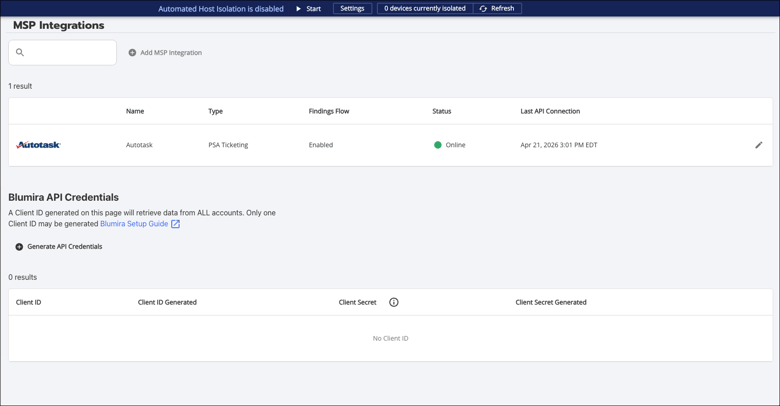
Enabled Autotask PSA Integration on Blumira
How it Works
When a new finding is detected in Blumira, it automatically creates a fully populated service ticket in Autotask, complete with investigation context, affected assets, Source, Issue Type, Sub-Issue Type, Ticket Category, Status, Priority, and Type. Your technicians get everything they need to start working the issue without ever leaving Autotask.
%201.png?width=711&height=475&name=Group%201%20(2)%201.png) Example of ticket in Autotask with notes linked from Blumira
Example of ticket in Autotask with notes linked from Blumira
But it doesn't stop at ticket creation. When your team updates a ticket in Autotask, those changes flow back to Blumira in real time. When a finding is resolved in Blumira, the ticket closes in Autotask. When a technician closes the ticket in Autotask, the finding updates in Blumira.
One workflow. Two platforms. Zero duplicate data entry.
Built for How MSPs Actually Work
We built this integration to mirror the depth of our ConnectWise PSA Integration, which means Autotask MSPs get the same battle-tested, bidirectional workflow that ConnectWise users have relied on, without any reduced functionality.
- Eliminating Double-Entry on Active Findings: A Blumira finding surfaces for a sub-account. The ticket lands in the technician's Autotask queue with full context already attached. They update the priority and add a note in Autotask, and both changes sync to Blumira automatically. When they close the ticket, the finding resolves in Blumira. No second update, no missed sync, no chasing down which system has the current status.
- Migrating Off ConnectWise Without Losing the Workflow: An MSP moving from ConnectWise to Autotask doesn't have to give up the Blumira PSA workflow. The same bidirectional sync, the same automatic ticket creation, the same depth of integration carries over. Switching PSAs doesn't mean your team has to start from scratch.
- Getting Findings to the Right Client Queue Every Time: When your team manages dozens of sub-accounts, misrouted tickets are a real problem. With Autotask's account mapping, Blumira sub-accounts map directly to Autotask companies by name or ID, so every finding lands in the right client's workflow automatically. No manual sorting, no technician playing traffic cop between queues.
Getting Started
Current Blumira Customers
The Autotask Integration is available today for all MSPs. Setup is a one-time process at the MSP parent account level and takes just a few steps:
- Create an API user in Autotask with a custom security level and generate your username, secret, and tracking identifier.
- Connect in the Blumira MSP Portal by adding a new MSP Integration, selecting Autotask, and entering your credentials.
- Map your accounts by linking Blumira sub-accounts to their corresponding Autotask companies.
- Configure your ticket settings including queue routing, status and priority mapping, and optional bidirectional sync.
NFR-Only
The integration is also available to MSPs trialing Blumira, but sub-account mapping is not supported for non-paying MSPs. Feature availability is determined by the edition on the MSP's NFR parent account.
For the full setup walkthrough, visit our Autotask PSA Integration guide.
More from the blog
View All Posts
Product Updates
4 min read
| July 2, 2026
May 2026 Product Releases
Read More
Customer Success Stories
6 min read
| July 15, 2025
Customer Story: LEAP Managed IT Streamlines Ticketing and Boosts Visibility with Blumira’s API
Read More
Blumira News
15 min read
| August 30, 2022
Now Available From Blumira: MSP Portal!
Read More